How to add several contacts to the same category?
There are two ways to do this. For both you first need to create a new category if you
haven't already done so: Address Book| Categories| Contact tab| New Category:
1. Click on the category name, then click on the box next to "Count" on the right side. Your address book
will appear and you can go through and check the people you want to belong to that category. Click here
for more details on managing categories.
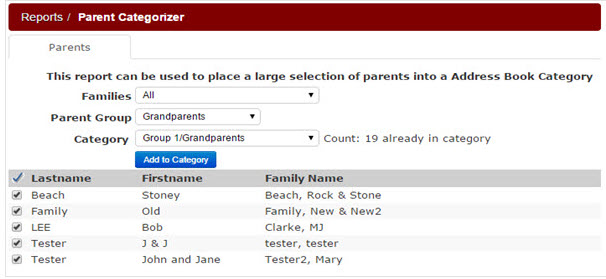
2. Possibly a quicker way is to go under Back Office| Reports| Parent Categorizer. Select Current or
All families; Choose the category you want to apply; Choose the parent group you want to add it to
(may need to do this for more than one group); Use the blue check mark to select all of the contacts;
Click on the Add to Category button.