
For students that have split households, one parent will need to be considered "Family 1", and the other
"Family 2". If the current family profile has both parents on it, change it to the name of the parent that is
considered Family 1. Family 1 is the parent who is financially responsible for the students. Now, you will
want to go Back Office Mgr - Families to create a profile record for the other parent. Do not add any
students to this parent, since the students are already in Back Office. Instead, you will add students to that
family through the student profile page.
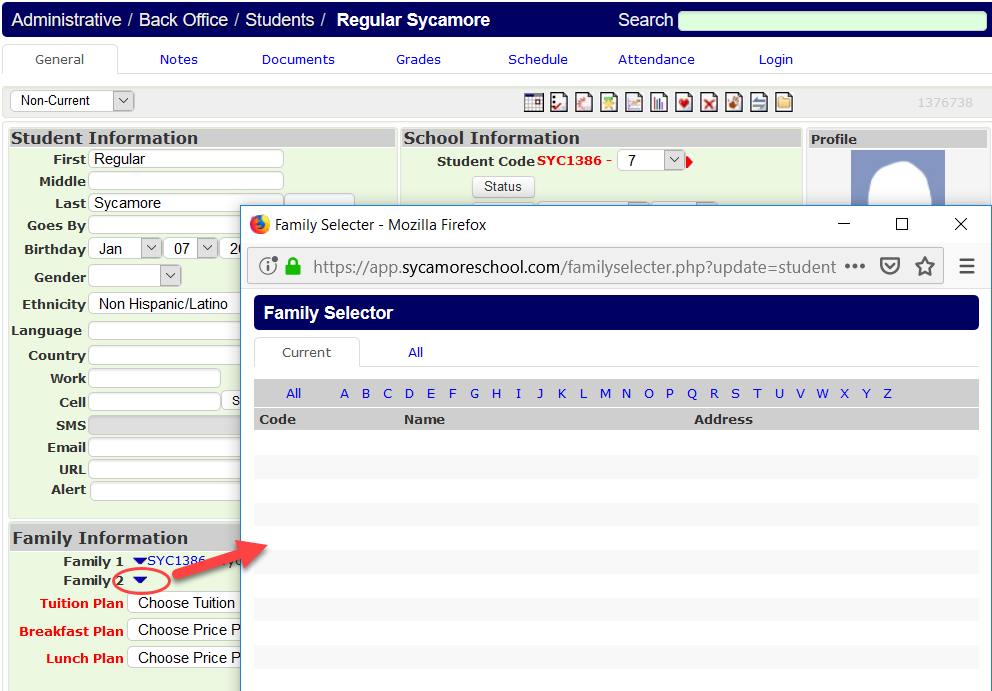
Once the second profile has been created, bring up the student's profile. Click on the blue arrow at family 2,
find new family and select. This student (with same student code based on family 1's family code) will then
be automatically added to the list of students in the Student tab of that second family's Back Office profile.
The family needs to be current to pull them into family 2 this way; for prospective, non-current families,
temporarily make the family current first, add them as family 2, then change their status back.
You can then make all parents (and step-parents if desired) in each family "Primary" which will put them all
automatically in the current families group that is used for batch communication (e.g. PAN's, emails, etc.).