
You will want to start by creating an alumni category. The category can be added under Address Book - Categories.
You can use the Contacts migration wizard to import your alumni contacts and add them to the alumni category. This link contains the template you will use to populate your contacts. https://se.sycamoresupport.com/migration-wizard-contacts-import
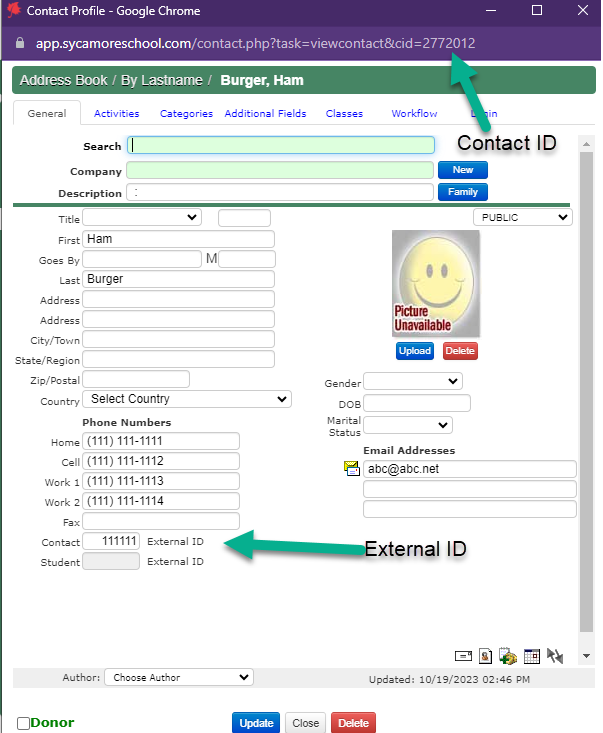
This template can be used to add new and existing alumni to the category. If there are existing contacts in your file, meaning they already live in your Address Book, you will need either their contact id or contact external id, which can both be found on their contact profile. The id is used to map to the correct profile. There is a column for each of these in the template, but you only need to choose one. (Note: The contact may not have an external id. This is an ID that is assigned by the school.)
Once your file is ready, you will want to go to Site Admin > Import Data > Migration Wizard. Click on Contacts Import.
- Upload your current data file with the contacts.
- Map the fields under the Destination column. Most of the fields should automatically be mapped.
- Click on the categories tab, and mark off the categories you want to put these contacts into.
- Once you have done this, then you can import.
Things you need to be mindful of...if the contact already exists in the Address book, and you don't include a contact id or external contact id, this will add the contact as a new entry. This will cause you to have duplicates of that contact.
Apostrophes on an import will cause problems, so O'Dell needs to be imported as ODell, then you will have to correct in the address book. The import wants to break this at the apostrophe.